Teamtailor integration
Not live yet. This integration is waiting for review by Teamtailor and is not available in the Teamtailor Marketplace or in Jack & Jill accounts yet. This page describes how it will work. Email support@jackandjill.ai if you want to hear when it launches.
- Overview
- How Jack & Jill stays up to date
- How to enable the integration
- Details of the integration
- Which API key to use
- Importing candidates that already exist
- Writing back to Teamtailor
- What it does not do
- FAQ
- Messages and what to do
- Support
Overview
Jack & Jill is a two-sided recruiting platform built on AI agents. Jack works with candidates: he coaches them on their job search and builds a detailed profile of their skills, experience and what they want next. Jill works with hiring teams: you describe a role, and she builds a brief, searches for matching candidates, shows you a shortlist, and handles the introduction when there is mutual interest. Every hiring team gets its own Jill for each role. Jill replaces long sourcing sessions and cold outreach, so hiring teams reach well-matched candidates in a fraction of the time. You only pay when you hire.
The Teamtailor integration connects Jill to your Teamtailor pipeline. Teamtailor sends Jack & Jill the candidates in your pipeline when a trigger you set up fires, so Jill has an up-to-date view of who is in each role and which stage they are in, without anyone re-entering candidates or exporting lists. Recruiters keep working in Teamtailor. Hires and rejections reach Jack & Jill as they happen in Teamtailor. With an optional Admin API key, Jack & Jill can also import candidates who were already in Teamtailor and, with Write, add, move and reject candidates as you work them in Jack & Jill.
How it works
Teamtailor sends candidates to Jack & Jill. In Teamtailor you add a trigger to a pipeline stage. Each time a candidate is added to that stage, Teamtailor sends the candidate to Jack & Jill, with the job they applied for and the stage they are in. Jack & Jill keeps a copy of each candidate it receives, so Jill can see who is in your pipeline and where they are.
Jack & Jill answers Teamtailor by marking the candidate as received on the candidate card in Teamtailor.
By default Jack & Jill only listens, and shows a result on the candidate card. If you connect an Admin API key with Write, Jack & Jill can also add candidates to a job and move or reject them in Teamtailor as you work them in Jack & Jill. See Writing back to Teamtailor. Jack & Jill never adds notes or tags, and never deletes anything.
What it does
- Receives candidates when a trigger fires or when you use the Jack & Jill send action on a candidate card
- Keeps a copy of each candidate with their job and current stage, so a later trigger on another stage updates where they are
- Records hires when a candidate is added to your Hired stage and that stage has a trigger
- Records rejections when a candidate is rejected in a stage whose Rejected part has a trigger
- Shows a result on the Teamtailor candidate card so you can see Jack & Jill received them
How Jack & Jill stays up to date
By default, Jack & Jill does not read your Teamtailor account. Teamtailor does not offer partner integrations a way to look up candidates or ask what changed, so everything Jack & Jill knows arrives as a delivery that Teamtailor sends. If you add an Admin API key with Read, Jack & Jill can also read the applications on jobs you linked to a role. See Importing candidates that already exist.
A delivery carries one candidate, the job, the stage the candidate is in, and whether the candidate has been rejected. Teamtailor sends one when:
- a candidate is added to a stage that has the Jack & Jill trigger, after the delay you set on the trigger,
- a candidate is rejected in a stage whose Rejected part has the Jack & Jill trigger, or
- someone uses the Jack & Jill send action on a candidate card.
So what Jack & Jill knows about a candidate is what the last delivery said. Without an Admin key, it learns about changes only through the triggers you set up.
What Jack & Jill learns, and when
| What happens in Teamtailor | Does Jack & Jill find out? |
|---|---|
| A candidate is added to a stage that has the trigger | Yes, shortly after the trigger delay. The candidate and their stage are recorded |
| A candidate is moved to a stage that has the trigger | Yes. Their stage in Jack & Jill is updated |
| A candidate is moved to a stage with no trigger | No. Jack & Jill keeps the last stage it was told about |
| A candidate is added to the Hired stage and that stage has the trigger | Yes. The candidate is recorded as hired |
| A candidate is rejected | Yes, if the Rejected part of the stage they were in has the trigger. Otherwise no. See Rejections |
| A candidate applied before the integration was connected | No, unless a trigger fires for them or someone sends them |
| A candidate is deleted or merged in Teamtailor | No |
How stages are read
A delivery names the stage but does not say what kind of stage it is. Jack & Jill reads the kind from the name. When an Admin key with Read reads the application, Jack & Jill uses Teamtailor’s own stage type instead (inbox, screening, interview, offer or hired), so a stage named in another language or by you is placed correctly.
| If the stage name contains | Jack & Jill reads it as |
|---|---|
| Inbox, New, Applied or Unsorted at the start | A new candidate |
| Review, Screen, Assess, Phone, Consider, Shortlist or Test | In review |
| Interview | Interview |
| Offer | Offer |
| Hired | Hired |
| Reject, Decline, Withdraw, Not a fit or Archive | Declined |
| Anything else | Recorded with its name, but not placed |
Teamtailor gives every job an Inbox and a Hired stage and does not let you rename or delete them, so those two always read correctly. A stage you named yourself, such as Culture chat, is recorded under its name but Jack & Jill does not know where it sits in your process.
How to enable the integration
Setting this up needs a Teamtailor company admin, and a Jack & Jill account whose plan includes ATS integrations.
1. Activate Jack & Jill in Teamtailor
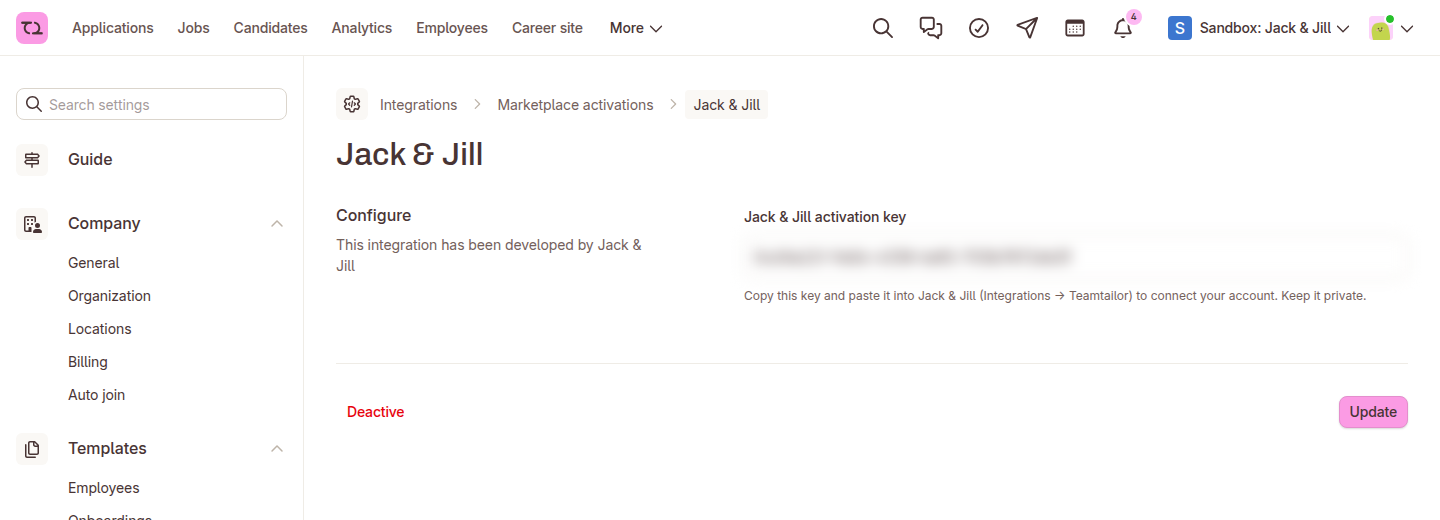
In Teamtailor, open the Marketplace, find Jack & Jill and activate it. Then open Settings → Integrations → Marketplace activations → Jack & Jill. The page shows a Jack & Jill activation key. Copy it and keep it private. The key proves to Jack & Jill that the Teamtailor account is yours, so Jack & Jill never asks you for a company ID.
2. Create an API key
Jack & Jill needs one key from your account. Choose the scope that fits what you want. See Which API key to use.
- Public scope with Read: lists your jobs, so you can link them to Jack & Jill roles. Candidates still arrive through your triggers.
- Admin scope with Read: also lets Jack & Jill read the candidates already on the jobs you link, to import them.
- Admin scope with Read and Write: also lets Jack & Jill write back to Teamtailor: add candidates to a job and move or reject them.
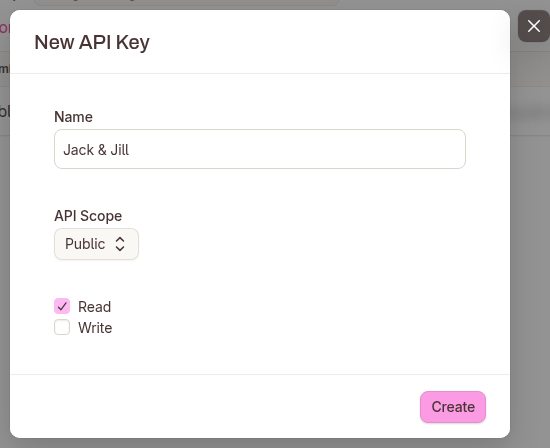
In Teamtailor, open Settings → Integrations → API keys and choose New API Key. Give it a name such as Jack & Jill, set API Scope, tick Read, tick Write only if you want Jack & Jill to write back to Teamtailor, and choose Create. Copy the key and keep it private. Without Write, Jack & Jill only reads with the key. Do not use the Internal scope.
3. Connect it in Jack & Jill
Open Integrations → Teamtailor and follow the wizard. Enter the activation key and the API key. Jack & Jill asks Teamtailor which account the activation key belongs to, and connects that account. The activation key is not stored.
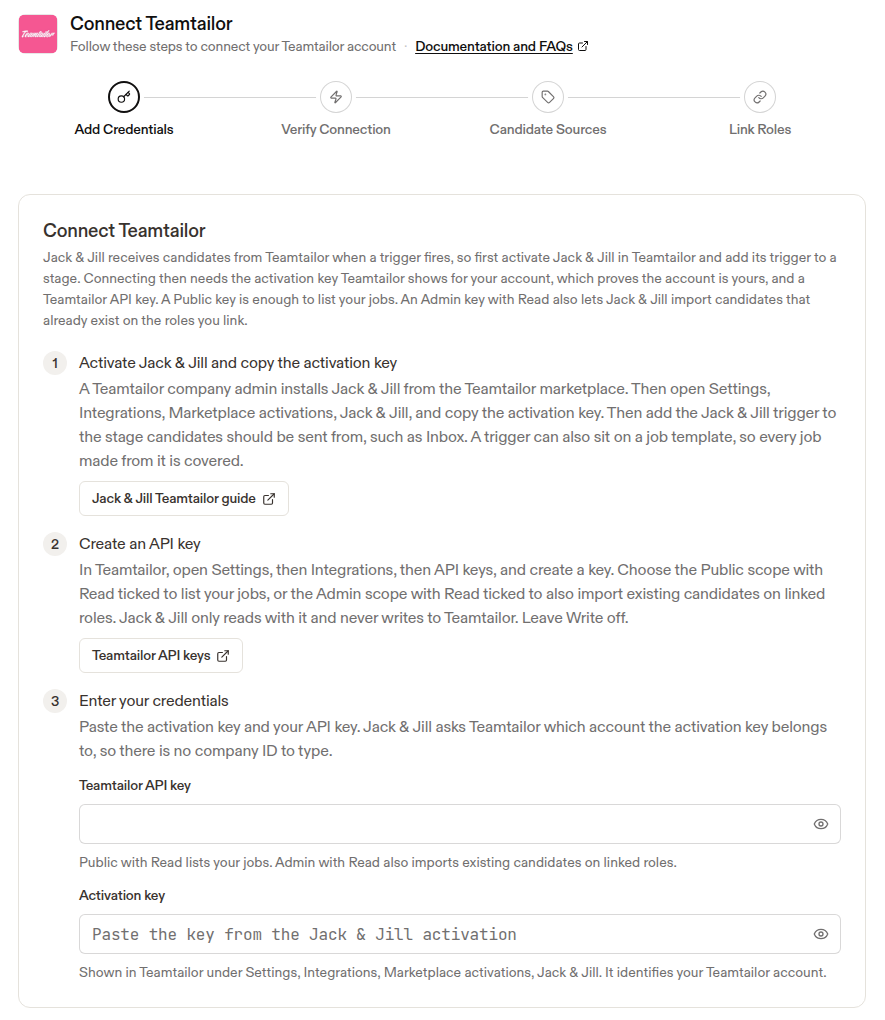
Jack & Jill tests the connection by reading your jobs. If your account has not accepted the Jack & Jill ATS data agreement yet, Jack & Jill asks you to accept it. No candidate is recorded until the agreement is accepted.
4. Add the triggers in Teamtailor
Open a job in Teamtailor and go to its Triggers. Choose a stage, click +, and choose Send the candidate to Jack & Jill. The dialog reads “When a candidate is added to the stage stage: Send the candidate to Jack & Jill”. Click Add trigger.
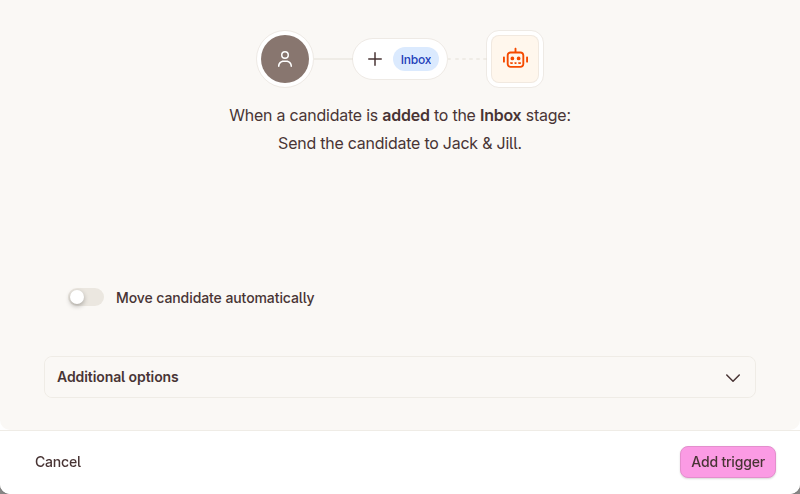
A trigger sits on one stage, and it fires when a candidate is added to that stage. Each stage also has a Rejected part, and a trigger there fires when a candidate in that stage is rejected. Add triggers to the stages you want Jack & Jill to follow:
- New candidates. Put a trigger on your first stage, Inbox. Every new candidate is sent.
- Progress through your process. Put a trigger on each later stage that matters to you, such as an interview stage. Jack & Jill only learns that a candidate has moved on when the stage they moved to has a trigger.
- Hires. Put a trigger on the Hired stage. See Hires.
- Rejections. Put a trigger on the Rejected part of each stage where you want rejections recorded. See Rejections.
- Many jobs at once. Triggers can be added to a job template under Settings → Templates → Job templates, in the Stages step with + Stage actions → Triggers, so every job made from the template is set up without doing each job.
The triggers to add
Teamtailor sends nothing on its own, so Jack & Jill only knows about a candidate, a move or a rejection when a trigger sends it. For the pipeline to stay in step, add two triggers to every stage of the job, or of the job template:
| Where in the stage | Fires when | Why it is needed |
|---|---|---|
| Active part, on every stage including Inbox | A candidate is added to the stage | Records new candidates and every move between stages |
| Active part of Hired | A candidate is added to Hired | Records the hire. Hired is a stage, so this is the same trigger as any other stage |
| Rejected part, on every stage | A candidate in that stage is rejected | Records the rejection. A candidate can be rejected from any stage, and Teamtailor has no single trigger for all rejections |
Each trigger is Send the candidate to Jack & Jill. The quickest way to cover every stage is a job template, so that each job made from it already has them. A stage left without its Rejected trigger leaves rejections from that stage unrecorded, and Jack & Jill keeps showing the last stage it was told about.
The trigger dialog also has these settings, under Additional options:
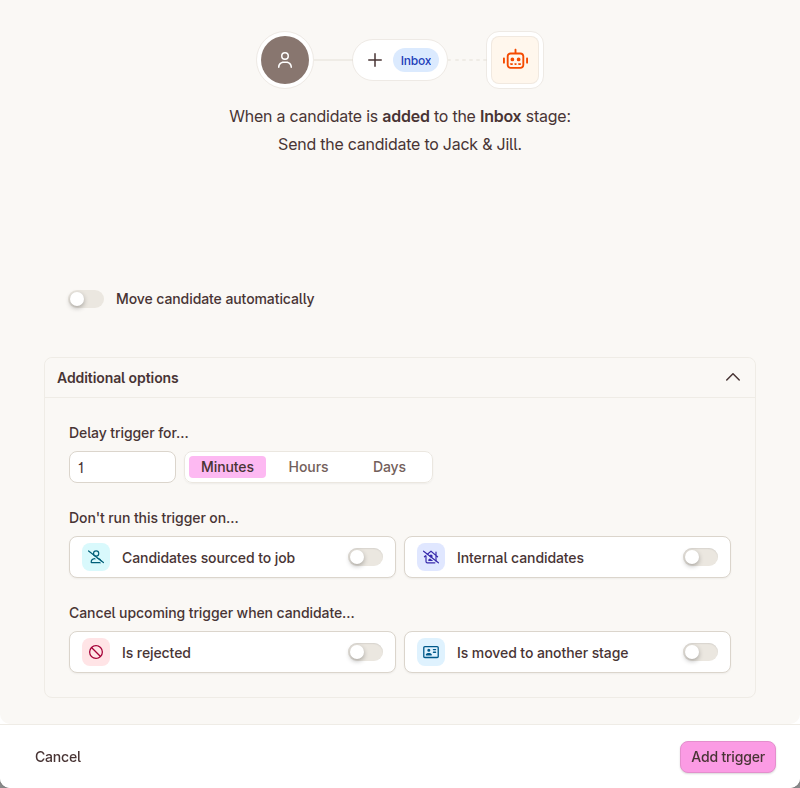
| Setting | What it does | What to choose |
|---|---|---|
| Delay trigger for… | Teamtailor waits this long after the candidate is added to the stage before it sends them. The default is 1 minute | Keep the default, or shorten it |
| Don’t run this trigger on… Candidates sourced to job | Skips candidates a recruiter added without them applying | Leave off to send everyone |
| Don’t run this trigger on… Internal candidates | Skips internal candidates | Leave off to send everyone |
| Cancel upcoming trigger when candidate… Is rejected | Cancels a trigger still waiting out its delay if the candidate is rejected first. Teamtailor documents this option for message, to-do and comment triggers only | Leave off |
| Cancel upcoming trigger when candidate… Is moved to another stage | Cancels a waiting trigger if the candidate moves on first. Teamtailor documents this option for message, to-do and comment triggers only | Leave off, so each candidate is sent from the stage they entered |
| Move candidate automatically | Lets Teamtailor move the candidate based on a result the integration reports | Not used yet. Jack & Jill does not report a result that can move candidates |
You can also send a single candidate without a trigger: open the candidate in Teamtailor and choose ⋮ More → Add integrations, then Jack & Jill.
Hires
Teamtailor does not send a separate event when someone is hired. A hire is a candidate being added to the Hired stage, which Teamtailor creates for every job. To record hires, add the Jack & Jill trigger to the Hired stage of each job, or of your job template.
The trigger dialog for Hired reads “When a candidate is moved to the Hired stage”.
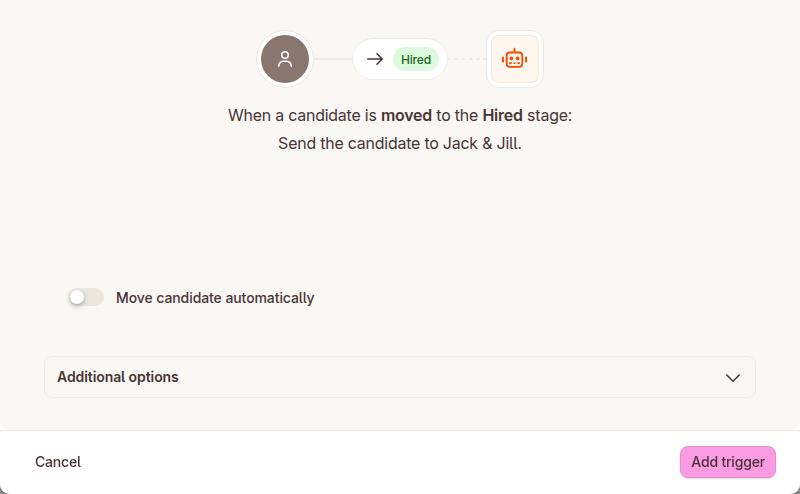
When a candidate is added to Hired, Teamtailor sends them after the trigger delay and Jack & Jill records them as hired. The job, the stage name Hired and the candidate’s details come with the delivery.
Rejections
Teamtailor lets you add triggers to the Rejected part of a stage as well as the active part. A trigger on the active part fires when a candidate is added to the stage. A trigger on the Rejected part fires when a candidate in that stage is rejected. To add one, open the job’s Applications board, open Filters and choose Rejected, then choose Triggers and add the Jack & Jill trigger to the stage. The board turns red while the Rejected filter is on. The trigger dialog then reads “When a candidate is rejected from the stage stage”.
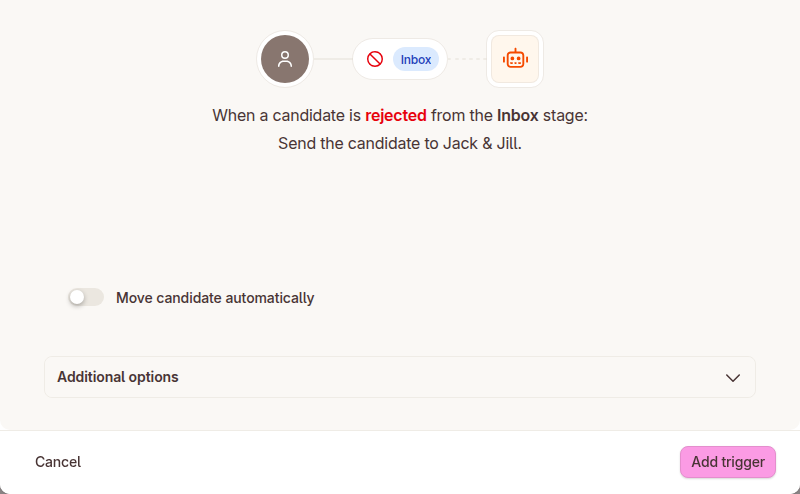
A trigger belongs to one stage, so a rejection is only recorded for stages whose Rejected part has the trigger. Add it to each stage where you want rejections recorded, or to your job template. A rejection in a stage without the trigger is not recorded, and Jack & Jill keeps the last stage it was told about.
Every delivery says whether the candidate is rejected, and a candidate sent while rejected is recorded as declined. Teamtailor does not share the rejection reason.
Details of the integration
Sent from Teamtailor to Jack & Jill
Teamtailor sends this when a trigger fires or the send action is used. Jack & Jill keeps the fields marked kept.
| Data | What Jack & Jill does with it |
|---|---|
| Candidate ID | Kept. Identifies the candidate in your Teamtailor account |
| Candidate name, email address, phone number | Kept, so a person in Teamtailor can be matched to the person in Jack & Jill |
| Link to the candidate in Teamtailor | Kept |
| Job ID and job title | Kept |
| Current stage name and ID | Kept. Updated each time a trigger on another stage fires |
| Whether the candidate has been rejected | Kept. A rejected candidate shows as declined |
| Company ID (from the activation key), event ID | Used to route and de-duplicate deliveries |
Teamtailor also includes the recruiter’s contact details, the candidate’s picture link, tags, screening answers, custom fields and uploads in what it sends. Jack & Jill does not store these.
Sent from Jack & Jill to Teamtailor
| Data | Where it appears |
|---|---|
| A result with status pending and the summary “Received by Jack & Jill” | On the candidate card in Teamtailor |
| A new candidate, marked as sourced, and an application on the job you linked. Name, email and phone only. Admin key with Write | When you save a candidate to a role in Jack & Jill and they are not already in Teamtailor |
| A move to another stage of the job. Admin key with Write | When you request an intro, a candidate accepts one, or you mark them hired in Jack & Jill |
| A rejection, with the time. No reason is set. Admin key with Write | When you pass on a candidate Jill added |
Read with your API key
| Data | Key needed | Why |
|---|---|---|
| Job ID, title and status, and the link to the job on your careers site | Public with Read | To list your Teamtailor jobs. Read-only |
| For each application on a job you linked to a Jack & Jill role: the candidate’s name, email, phone and profile link, the stage and its type, whether the application is rejected and the reject reason | Admin with Read | To import candidates that already exist and to catch up on changes a trigger did not send. Read-only, and only for linked jobs |
A Public key cannot read candidates, applications, notes or interview data. Jack & Jill does not store the candidate’s picture, address, resume, notes or screening answers from either key.
Which API key to use
Teamtailor has two APIs.
- The Partner API is the one Jack & Jill is built on. Teamtailor uses it to send candidates when a trigger fires, and Jack & Jill uses it to send a result back. It carries each candidate’s job and stage with them. It needs no key from you beyond the activation key.
- The Public API is your Teamtailor account’s own API, used with a key you create. It is where Teamtailor offers a list of jobs and, with an Admin key, your applications. The Partner API has neither.
Candidates normally reach Jack & Jill when a trigger fires. The key adds two things the Partner API cannot do:
-
A Public key with Read lists your jobs, so you can link each to a Jack & Jill role. Without it Jack & Jill would learn about a job only when its first candidate arrives.
-
An Admin key with Read also reads the applications on the jobs you linked. That lets Jack & Jill import candidates who were already in Teamtailor and see stage changes and rejections that a trigger did not send. It also gives Jack & Jill Teamtailor’s own stage type for every stage, so a stage named “Gespräch 1” is read as an interview.
-
An Admin key with Read and Write does all of that, and also lets Jack & Jill write back to Teamtailor: add candidates to a job and move or reject them.
What the key can do is limited on purpose:
- It is optional. Candidates sent by your triggers arrive without an Admin key.
- Without Write, Jack & Jill only reads with it. Leave Write off if you do not want Jack & Jill to change anything in Teamtailor.
- With Write, Jack & Jill changes only what the lifecycle settings say, and only on jobs you linked to a Jack & Jill role.
- It reads only jobs you linked to a Jack & Jill role.
- Jack & Jill checks what the key can do when you connect. If you add Write to a key later, disconnect and connect again so Jack & Jill checks the key again.
You can revoke the key at any time in Teamtailor under Settings → Integrations → API keys. Jack & Jill stops reading, and candidates that Teamtailor sends through your triggers keep arriving.
Importing candidates that already exist
Triggers send a candidate when they enter a stage, so candidates who were already in a stage when you connected are not sent. With an Admin key with Read, Jack & Jill can read them.
- What is imported: the applications on jobs you linked to Jack & Jill roles, including hired and rejected ones. Jobs you did not link are not read.
- What turns it on: importing is off by default. Email support@jackandjill.ai to turn it on for your account. Until then, Jack & Jill reads only candidates that are linked to Jack & Jill.
- How it stays current: after the first read, Jack & Jill reads only applications changed since the last read. Triggers still send candidates in real time.
- One record per candidate and job: an imported candidate and a candidate sent by a trigger are the same record, so nobody appears twice.
- Without an Admin key: move each candidate out of their stage and back, or use ⋮ More → Add integrations on the candidate. Both send the candidate through your trigger.
Writing back to Teamtailor
This needs an Admin key with Read and Write. It is optional. With a key that cannot write, Jack & Jill never changes a candidate in Teamtailor, and says so when you connect.
In Jack & Jill, open Integrations → Teamtailor and use the lifecycle settings to choose what Jack & Jill does as you work a role. Each setting only applies to roles linked to a Teamtailor job.
| When this happens in Jack & Jill | What Jack & Jill does in Teamtailor |
|---|---|
| You save a candidate to a role | Adds the candidate to the linked job as a sourced candidate, in the job’s first stage. If the person is already in Teamtailor, with the same email, they are reused and not duplicated |
| You request an intro | Moves the candidate to the job’s first Screening stage, if the job has one |
| A candidate accepts an intro | Moves the candidate to the job’s Interview stage, if the job has one |
| You mark a candidate as hired | Moves the candidate to the job’s Hired stage |
| You pass on a candidate Jill added | Rejects the application, without a reason |
Good to know:
- Stages are matched by Teamtailor’s own stage type (Screening, Interview, Hired), not by name, so a stage named “Gespräch 1” counts as an interview. If a job has no stage of that type, Jack & Jill skips the move.
- A change can take up to a minute to appear. Teamtailor ignores a change to an application that follows another change too soon, so Jack & Jill waits and tries again. It confirms the change before treating it as done.
- A rejected candidate cannot be moved. Teamtailor refuses it, and Jack & Jill does not try to restore them.
- Triggers still apply. A move Jack & Jill makes can fire your Teamtailor triggers, which then send the candidate back to Jack & Jill. They land on the same record, so nobody appears twice.
- What Jack & Jill never writes: reject reasons, notes, tags, resumes, sources or scheduling. It does not delete candidates or applications.
What it does not do
- Move or reject candidates without an Admin key with Write. Teamtailor gives a partner no way to change an application, so this needs your key. Teamtailor can also move candidates by rules you set up in a trigger, using a result Jack & Jill reports. Jack & Jill does not report one yet.
- Add notes, tags, resumes or scheduling. Jack & Jill does not write these to Teamtailor, with or without Write.
- Read your whole pipeline. Without an Admin key, a candidate who never enters a stage that has a trigger, and is not sent by hand, is not received. With one, Jack & Jill reads only jobs you linked to a role, and only once importing is turned on for your account.
- Update a stage between triggers without an Admin key. Where a candidate is in Jack & Jill is where the last delivery or read found them.
- Learn about rejections in stages without a rejected trigger. See Rejections.
FAQ
Do I have to add a trigger to every stage? No. A trigger on your first stage sends each new candidate. Add triggers to later stages if you want Jack & Jill to know where candidates have moved, to the Hired stage to record hires, and to the Rejected part of stages to record rejections.
Does Jack & Jill know when someone is hired? Yes, if the Hired stage has the trigger. Without it, Jack & Jill does not hear about the hire.
Does Jack & Jill know when someone is rejected? Yes, if the Rejected part of the stage they were in has the trigger. Without it, Jack & Jill does not hear about the rejection. See Rejections.
Why does a candidate still show in their old stage in Jack & Jill? The stage they moved to has no trigger, so Jack & Jill was not told. Add the trigger to that stage.
Will candidates be sent twice? Each delivery has its own ID, and Jack & Jill records a delivery once. A candidate who is added to another stage with a trigger is sent again, and that updates their stage.
How long does it take after a candidate moves? Teamtailor waits for the trigger delay, 1 minute by default, then sends the candidate. It can take a little longer for Teamtailor to process the trigger.
Which Teamtailor users can set this up? A company admin. Teamtailor requires an admin to activate marketplace integrations.
What happens to candidates if I disconnect Jack & Jill? Jack & Jill stops recording candidates and stops reading or writing with your key. Nothing already in Teamtailor is changed or removed. Reconnecting starts recording again from that point.
Does Jack & Jill change anything in Teamtailor? By default only the result shown on the candidate card. If you connect an Admin key with Write, it also adds candidates to a linked job and moves or rejects them, as set in the lifecycle settings. See Writing back to Teamtailor.
Which key should I use? A Public key with Read is enough to link jobs. Use an Admin key with Read if you also want Jack & Jill to import candidates who were already in Teamtailor, and add Write if you also want it to add, move and reject candidates. Leave Write off if you want Jack & Jill to change nothing in your pipeline. See Which API key to use.
Can Jack & Jill import candidates that were already in Teamtailor? Yes, with an Admin key with Read, for jobs you linked to a role. Email support to turn it on. See Importing candidates that already exist.
Where do I find the activation key? In Teamtailor, under Settings → Integrations → Marketplace activations → Jack & Jill.
For more questions, see the FAQs page.
Messages and what to do
Teamtailor shows these on the candidate card when Jack & Jill cannot record a candidate.
| Message | What to do |
|---|---|
| This Teamtailor account is not connected to Jack & Jill yet | Finish the connection in Jack & Jill under Integrations → Teamtailor, then send the candidate again |
| Jack & Jill cannot receive candidates until your account accepts the current ATS data agreement | Accept the data agreement in Jack & Jill, then send the candidate again |
| Your Jack & Jill plan does not include ATS integrations | Change your plan, or email support |
| Jack & Jill has paused receiving candidates from ATS integrations for now | Wait and send the candidate again later |
| Jack & Jill needs a candidate that is on a job | Send the candidate from a job. A candidate in your talent pool with no job cannot be recorded |
| Jack & Jill could not record this candidate. Please send it again | Use the Jack & Jill send action on the candidate again. Teamtailor does not retry a failed delivery on its own |
| The Jack & Jill Teamtailor integration is not available yet | The integration has not launched yet |
Connecting in Jack & Jill can also fail:
- This Teamtailor account is already connected to another Jack & Jill company. One Teamtailor account connects to one Jack & Jill company. Email support.
- Teamtailor does not recognise this activation key. Copy the key again from the Jack & Jill activation in Teamtailor, with no extra spaces.
- Teamtailor rejected this API key. Create a new key with the Public or Admin scope and Read ticked, and enter it again.
- This Teamtailor API key cannot read jobs. Check that the key has Read ticked.
- This key cannot change applications. The key is an Admin key without Write. Jack & Jill connects and reads, but does not move or reject candidates. To let it, create an Admin key with Read and Write.
- This key reads jobs only. The key is a Public key, so candidates arrive through your triggers. To import existing candidates, create an Admin key with Read.
Support
For help setting up or fixing the integration, email support@jackandjill.ai. Include your Teamtailor company name, the job and candidate you tried to send, and the message Teamtailor showed.